
Design pages and navigation
Create a journey that asks for the right information in a clear order, and gives people a dependable way to move, review and return.
Start with the user’s outcome
Before adding a page, describe what the person needs to do next. They may need to read guidance, answer one question, provide contact details, upload a file, review their answers or see what happens after they submit. Choose a page pattern that supports that outcome instead of beginning with a component or a setting.
In the Builder, select Service overview, then Add page. The page library includes an empty page, content page, question-with-choices page, short and large text inputs, contact details, email address, file upload, signature, location selection, record search, data grid, Check your answers, PDF signing, end and exit pages. The available templates are a starting point: you can refine their components, wording and flow after adding one.
Choose a page pattern
| Page pattern | Use it when |
|---|---|
| Content page | Someone needs instructions or supporting information before continuing. |
| Question page | The person needs to provide a focused answer. Adjust the label, hint, validation and visibility after adding it. |
| Check your answers | People need to review and change information before the next stage. |
| End or exit page | The journey is complete, or needs to stop with a clear explanation of the next step. |
A page should normally have one clear purpose. If a person has to make an important choice, understand a decision or correct an error, give that moment enough space rather than burying it among unrelated questions.
Build the journey in a useful order
Set the page title and choose where to add the page in the journey. The service overview separates form pages from submission workflow steps, making it easier to distinguish the information-gathering journey from work that happens after a submission.
- Sketch the shortest successful route from the first page to confirmation.
- Add the essential question and guidance pages in that order.
- Add a review page where people need to check or change their answers.
- Add a completion or exit page that makes the next action clear.
- Only then add conditional routes, task lists or specialised pages where they solve a real need.
Use the list and flow views in Service overview to inspect the structure. Give pages specific titles, especially when there are several similar questions. This makes conditions, actions and later maintenance easier to understand.
Navigation decision flow
flowchart TD
    A["Person selects Continue"] --> B{"Which navigation mode is active?"}
    B -->|"Next page in journey"| C["Follow the next journey page"]
    B -->|"Next page requiring attention"| D["Go to the next unvisited, review or invalid page"]
    B -->|"Always go to Check Answers"| E["Return to Check your answers when one follows"]
    C --> F["Complete or continue the journey"]
    D --> F
    E --> F
Set the Continue button behaviour
In Service settings, open Navigation settings. The Continue button navigation mode affects the experience across the service, so decide it deliberately and test it with a realistic route.
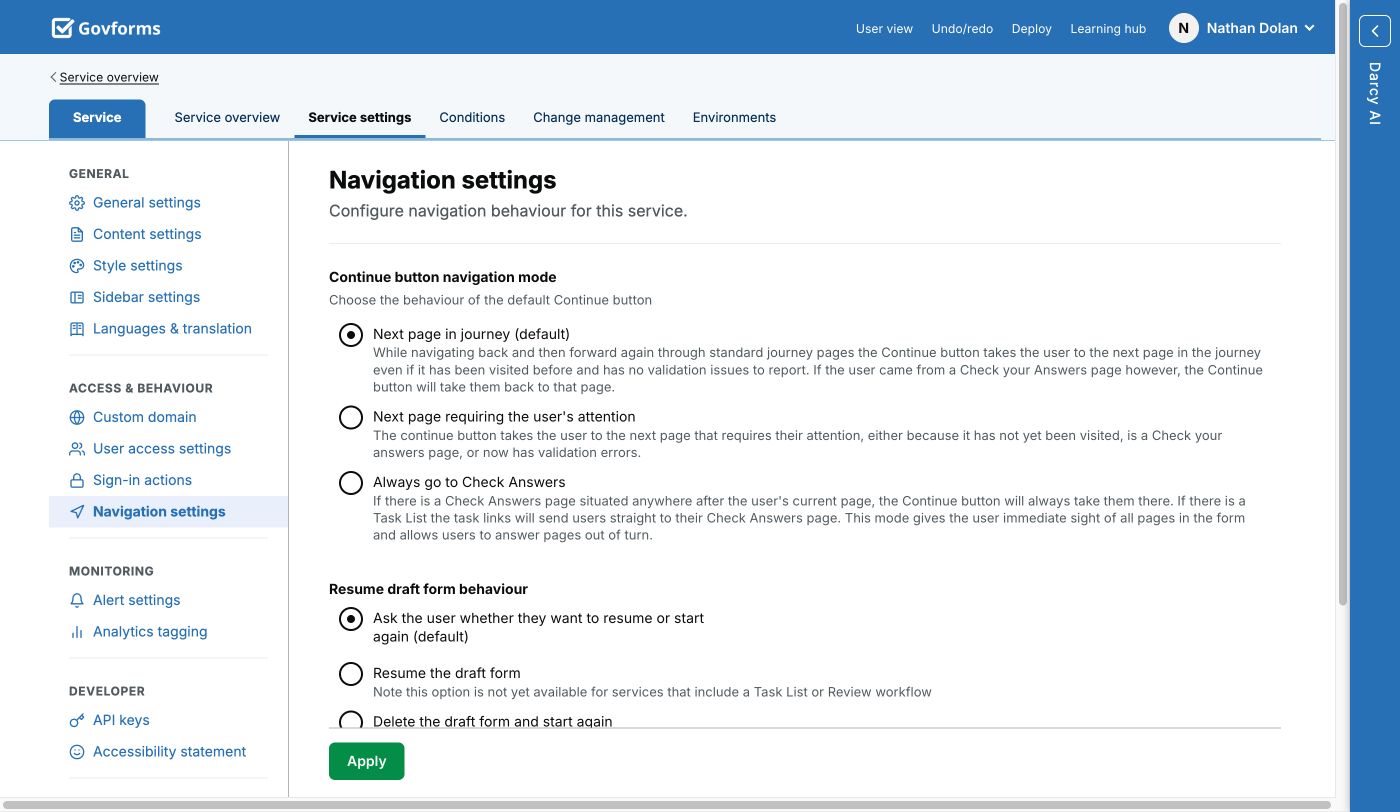
The live Navigation settings screen. Choose a mode that matches the intended journey, then select Apply and test it in User view.
| Mode | Behaviour |
|---|---|
| Next page in journey | The default. Continue follows the next page in the journey, including when a person moves back and forwards through pages they have already visited. When the person arrived from Check your answers, Continue returns them to that review page. |
| Next page requiring attention | Continue moves to the next unvisited page, Check your answers page, or page that now has validation errors. |
| Always go to Check Answers | If a Check your answers page is later in the journey, Continue returns there. This can suit a journey where people may answer pages in a different order and need a frequent overview of what remains. |
Important: Changing navigation behaviour can alter where people land after they edit an answer. Test every conditional route, including returning from Check your answers, before releasing the change.
Decide how returning users resume
The same settings page controls what happens when somebody opens a saved draft. You can ask whether they want to resume or start again, resume the draft automatically, or delete it and start again. The automatic resume and start-again choices are not currently available to services that include a Task List or Review workflow.
Choose the prompt when people may be returning after a meaningful break or when they could have changed circumstances. Choose a more direct behaviour only when it is clear which journey state they should continue from.
Check the journey before you move on
- Open User view and follow the normal route from beginning to end.
- Use the back link, then change an answer and continue again.
- Test each alternative route created by conditions or exits.
- Check that every end or exit page explains what happens next.
- Repeat the checks in QA before deploying a changed service.