
Service environments and deployments
The Environments area shows how a service is exposed in Prototype, QA and Production. Prototype follows the current Builder design; QA and Production run an explicitly selected saved version. This lets you keep designing while a known version remains deployed.
Open a service and select Environments. The side navigation has a page for each available environment.
Compare the environments
| Environment | Main purpose | How it is updated | Typical access |
|---|---|---|---|
| Prototype | rapid design checks and demonstrations | reflects the current Builder design; no version deployment | shareable prototype URL, protected by the displayed prototype credentials for people without Builder access |
| QA | controlled integration, acceptance and regression testing | deploy a selected saved service version | signed-in library users and approved QA testers |
| Production | the live service and operational dashboards | deploy a selected approved version | the service’s configured end-user access model; management remains restricted |
Never put real customer or sensitive data into Prototype or QA. A realistic test record should be synthetic and recognisably non-live.
Use Prototype
The Prototype page shows:
- a link that opens the current prototype;
- the username and password required by people who do not have Builder access;
- a copyable sharing URL;
- an installation page when the service is configured as an installable app.
Treat the displayed prototype password as access information. Share it only with intended reviewers and do not include it in public documentation or screenshots. Prototype is not a release record: changes can appear there as the design is edited.
Use Prototype for layout, content and basic journey checks. Do not treat it as evidence that QA credentials, environment properties, storage or external APIs work.
Deploy a selected version
QA and Production show a version selector. The current Builder version appears as current; previously deployed versions remain selectable and show where and when they were last deployed.
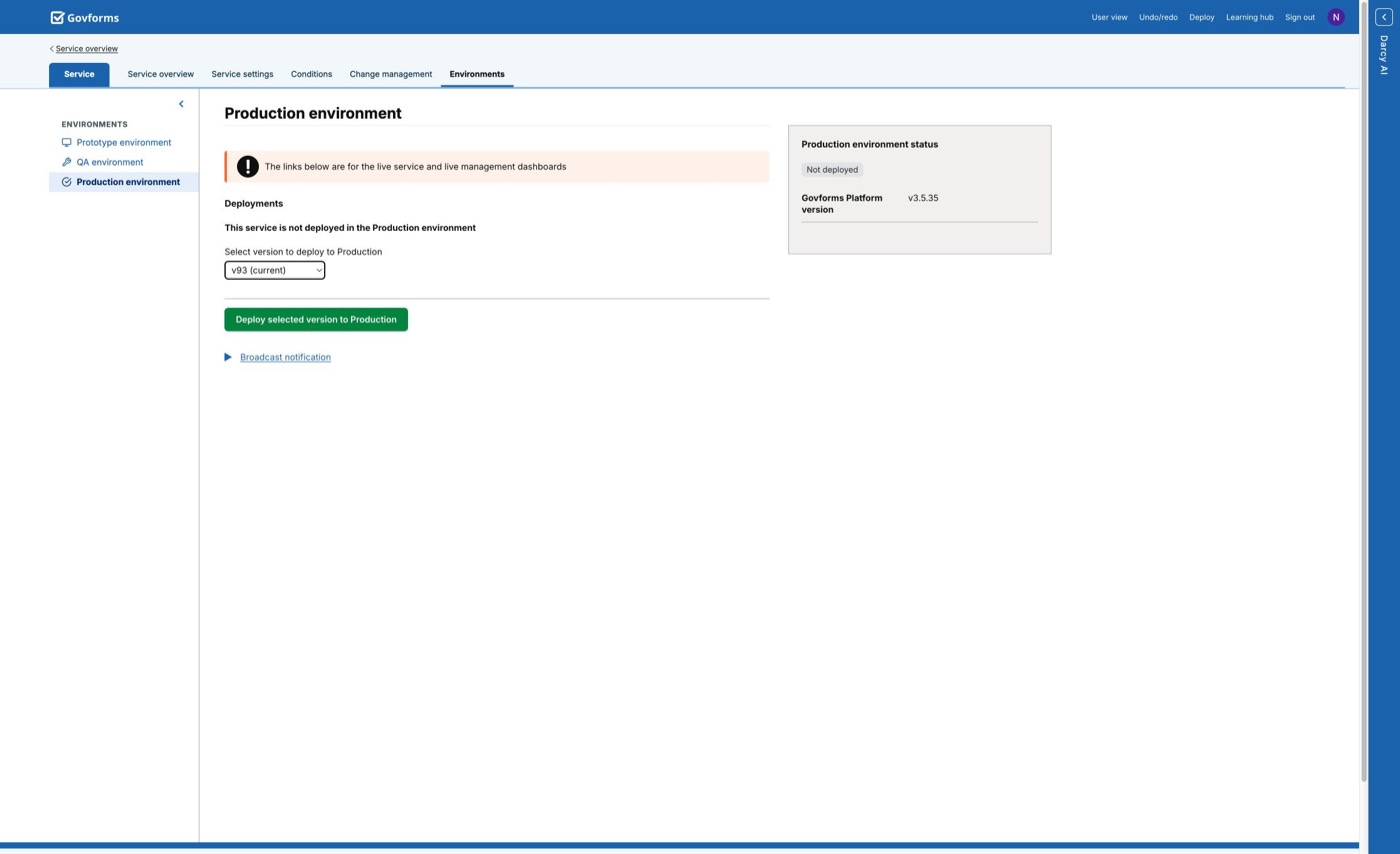
- Open the target environment.
- Read the current running version and status.
- Select the exact version approved for release.
- Select Deploy selected version for that environment.
- Wait for the status to move out of Deploying update.
- Confirm the reported running version matches the selection.
- Open the service start page and complete a smoke test.
The environment status can distinguish Online, Deploying update, Not deployed, Service offline and Environment offline. A platform version is also shown to help support distinguish the running platform build from the service version.
Understand version rollback
You can deploy a previously saved version without restoring it as the current Builder design. This is the quickest safe rollback when the current design should remain available for diagnosis and correction.
flowchart TD
  A[Production running v40] --> B[Deploy v43]
  B --> C{Smoke test passes?}
  C -->|Yes| D[Production remains on v43]
  C -->|No| E[Select known-good v40]
  E --> F[Deploy v40 to Production]
  F --> G[Current Builder design can remain v43 for repair]
After rollback, record the incident, confirm external side effects and fix the current design. Deploying an older service definition does not reverse emails already sent, files already uploaded, API updates or submitted data.
Remove a deployed service
When a service is running, authorised users can remove it from QA or Production. Removal stops the service in that environment but preserves deployment history and may leave historical analytics available.
Before removal, consider in-progress users, bookmarks, custom domains, integrations, scheduled communications and operational records. Provide an agreed replacement or closure message where required. Removal does not delete the Builder service and does not clean up external resources.
Use environment links and dashboards
After deployment, an environment can show links for the service start page, performance analytics, logs or audit views, and an app installation page when enabled. Use Copy URL rather than manually rebuilding an address.
Production links point to live services and management data. Confirm the target before opening, sharing or testing them. Access to live-data and audit views also depends on library security settings and the user’s role.
Set a broadcast notification
QA and Production each support an environment-specific broadcast notification. It appears to users on page 1 by default; a service setting can choose another page. Enter the content in Markdown, preview it and select Apply notification change.
Notification changes are independent of service-version deployments and can take a short time to appear. Leave the field empty and apply the change to hide the notification. Use this for concise operational information, not for permanent page content.
Release order for dependent settings
A service version may depend on library authentication, style, email, properties, secrets, data feeds or storage links. Apply and validate those dependencies in the target environment before deploying the service version that references them.
flowchart LR
  A[Apply library environment settings] --> B[Verify connections and identities]
  B --> C[Deploy selected service version]
  C --> D[Wait for Online status]
  D --> E[Smoke-test the full journey]
Production release checklist
- The selected version number matches the approval record.
- The same version and its dependent integrations were tested in QA.
- Required library settings were applied to Production.
- The library is not in sandbox mode.
- Translations, domains, authentication and email identities are ready.
- Monitoring, support and rollback owners are available.
- The environment reports the expected running version and Online status.
- A controlled live smoke test succeeded without creating unwanted operational data.